ISWC 2026 Change Propagation Demo
This page is a landing page for an ISWC 2026 Demo Submission Change Propagation in Application Profile Hierarchies using Dataspecer.
Dataspecer source code is on GitHub, the demo instance is running from the iswc2026 branch.
In our demo instance, you can try building your own vocabulary and application profile, or you can follow our Demo scenario described below.
Go to the ISWC 2026 demo instance
If you want to run the demo instance locally, you can use the following Docker image and open http://localhost:3000/:
docker run -p3000:80 ghcr.io/dataspecer/ws:branch-iswc2026
Alternatively, you can watch a video of us going through the scenario.
Demo scenario
The demo scenario consists of two parts - change propagation from a vocabulary to an application profile, and then, from this updated application profile further down the hierarchy into the next application profile.
Note that the W3C Data Catalog Vocabulary (DCAT) consists of both a vocabulary containing term definitions, such as dcat:Dataset, and a default application profile (DAP), as it specifies e.g. dcterms:title label to be title even though the original is Title, and that the title is used with dcat:Dataset, which is not part of the original DCMI Metadata Terms vocabulary.
Therefore, in the Dataspecer workflow, these are two specifications - the DCAT vocabulary, represented by the RDF Turtle file of the official vocabulary, and the DCAT Default Application Profile (DCAT-DAP), recreated in Dataspecer to be machine-readable.
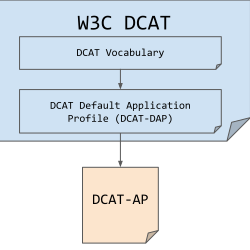
For the first part, we are in the role of Alice, who is the editor of the W3C DCAT specification.
Currently, she has DCAT2-DAP - default application profile of DCAT version 2, which profiles all vocabularies reused by DCAT, including the DCAT vocabulary in version 2.
The DCAT vocabulary was now changed from version 2 to version 3.
Alice wants to see what has changed, and propagate the changes to the DCAT2-DAP, making it DCAT3-DAP.
She uses Dataspecer for the task, saving her the time to analyze the changes and propagate them to her specification.
For the second part, we are in the role of Bob, who is the editor of DCAT-AP, the DCAT application profile maintained by the SEMIC initiative of the European Commission.
Bob currently has DCAT-AP 2.1.1 (Original, Dataspecer), a profile of DCAT2-DAP, and discovers that Alice at the W3C has just published the updated DCAT3-DAP.
Bob wants to see what has changed, and propagate the changes to the DCAT-AP 2.1.1, making it DCAT-AP 3.0.1.
He uses Dataspecer for the task, saving him the time to analyze the changes and propagate them to his specification.
Part I - Propagating Changes from Vocabulary to Application Profile
For this scenario, we assume that Alice has the DCAT Default Application Profile version 2 currently published on the web. We import it into Dataspecer, point Dataspecer to the new version of the profiled DCAT vocabulary, we see the changes, apply them, do some more changes in the specification between version 2 and 3 and finish with seeing the updated specification, with the possibility to re-publish it on the Web.
- Go to demo instance - you will see existing specifications (dataspecs).
- Click on the Import button
- We are importing
DCAT2-DAPfrom a URL - URL:
https://mff-uk.github.io/specifications/dcat2-dap/ - Click on the Import button
- After a while, you will see
DCAT 2 Default Application Profileas the top dataspec.
- We are importing
- (Optional) Explore the imported specification by clicking on the Edit vocabularies and application profiles () button
- Conceptual model editor is opened, showing a catalog on the left hand side, and a blank canvas on the right hand side.
- One of the vocabularies in the catalog is DCAT 2 Default Application Profile
- Note: One current limitation of the tool is that the visual diagrams are not imported when a dataspec is imported. We can, however, autolayout the imported vocabulary/application profile.
- To explore the
DCAT2-DAPvisually, We click on 👁️ next to it, which automatically layouts the contents of the application profile. You may also need to re-center the view on the newly added visualization. - Besides the visual representation, we can also explore the (class and property) profiles included in
DCAT2-DAPin the catalog, on the Profiles tab. - Note that in this version (version 2) of DCAT, there is no class Dataset Series, and no property resource from Catalog to Cataloged Resource.
- On the top, we click on the 💾👋_Save and leave_ button.
- In Dataspecer packages, we expand the DCAT 2 Default Application Profile
- We can see the different parts of the specification - the visual models (the diagrams), the application profile semantic model and the profiled vocabularies (denoted PIM Wrapper).
- Among the profiled vocabularies, we find
dcat2, and click the Reload data specification () button on its line. - We change the URL to
https://www.w3.org/ns/dcat3.ttl- version 3 of the DCAT vocabulary - We click on the Reload and view changes button.
- This brings us to the new workflow, main part of this demonstration.
- We can see the number of all changes in the new vocabulary, and proposed operations to be done in the current dataspec to propagate the changes relevant to it. Relevant changes are those that affect the profiled parts of the vocabulary.
- In the
dcat2section we can see the individual changes detected in the vocabulary, such as new classes, new relationships (properties), changed definitions, specializations, etc. This is just for information. - In the New classes section, we see suggestions to add new classes to the dataspec. In this case, it is the Dataset Series class, introduced in DCAT 3. We may choose whether to add it or not. We choose to add it.
- In the New relationships section (for object properties), we see that resource with domain Catalog and range Cataloged Resource can be added. We see the suggestion, because both the domain and the range of the property are already in the current version of the profile, so it is assumed, that we may want to profile the new property as well.
- In the New generalizations section, we see that because in the vocabulary, Dataset Series specializes Dataset (Dataset generalizes Dataset Series) it is suggested to bring this relation also to the profile.
- In the Modifications section, we can see changes to definitions of properties. Here, we can decide to
- Keep inheriting - the current version relied on the vocabulary for the property definition. It changed in the vocabulary, so the change will be automatically reflected in the profile
- Keep old value in profile - we would choose this, if we were not satisfied with the change, and wanted to stick to the original value
- Resolve manually - put the change on the TODO list to deal with manyally
- We can also see changes to the names of properties
- After we investigate the proposed changes, we accept them by clicking the Accept update & apply selected button on the top of the page.
- Finally, we click on Back to manager
- We can rename the spec by clicking the three-dot menu, rename and change the name to DCAT 3 Default Application Profile.
- (Optional) Explore the updated specification by clicking on the Edit vocabularies and application profiles () button
- In the Profiles tab of the catalog, we can now see the Dataset Series class and the resource property.
- We add them to the canvas by clicking toggling the 🕶️ button next to them to 👁️. If we do not see them in canvas, we can find them by clicking the 🎯 button next to them.
- At this moment, we could do other changes to the
DCAT-DAPon top of those coming from the DCAT vocabulary, which would be the normal course of work. - When done, on the top, we click on the 💾👋_Save and leave_ button.
- We click on the three-dot menu, show documentation (en) and we see the Respec documentation generated.
- We can verify that the Dataset Series class is now in the dataspec
- We can verify that the resource property is now in the dataspec, with Catalog as domain.
Part II - Propagating Changes from Application Profile to Application Profile
Now Bob, maintaining DCAT-AP, a profile of DCAT2-DAP in the profiling hierarchy, wants to update DCAT-AP 2.1.1 to DCAT-AP 3.0.1 based on the changes from DCAT2-DAP to DCAT3-DAP, that we partially did in the previous part.
- Go to demo instance - you will see existing specifications (dataspecs).
- Click on the Import button
- We are importing
DCAT-AP 2.1.1from a URL - URL:
https://mff-uk.github.io/specifications/dcat-ap2/ - Click on the Import button
- After a while, you will see
DCAT-AP 2.1.1 based on DCAT 2 DAPas the top dataspec.
- We are importing
- (Optional) Explore the imported specification by clicking on the Edit vocabularies and application profiles () button
- Conceptual model editor is opened, showing a catalog on the left hand side, and a blank canvas on the right hand side.
- One of the vocabularies in the catalog is DCAT-AP 2.1.1 based on DCAT 2 DAP
- Note: One current limitation of the tool is that the visual diagrams are not imported when a dataspec is imported. We can, however, autolayout the imported vocabulary/application profile.
- To explore the
DCAT-AP 2.1.1visually, We click on 👁️ next to it, which automatically layouts the contents of the application profile. You may also need to re-center the view on the newly added visualization. - Besides the visual representation, we can also explore the (class and property) profiles included in
DCAT-AP 2.1.1in the catalog, on the Profiles tab. - Note that now, in the Profiles tab, we see both the upstream profiled
DCAT 2 Default Application Profile, and the currentDCAT-AP 2.1.1 based on DCAT 2 DAP. - Note again that in this version (version 2.1.1) of
DCAT-AP, there is no class Dataset Series, and no property resource from Catalog to Cataloged Resource. - On the top, we click on the 💾👋_Save and leave_ button.
- In Dataspecer packages, we expand the DCAT-AP 2.1.1 based on DCAT 2 DAP
- Again, we can see the different parts of the specification - the visual models (the diagrams), the application profile semantic model and the profiled vocabularies and application profiles.
- The one profiled application profile is
DCAT 2 Default Application Profile. - Now we get the URL of the updated
DCAT3-DAP. There are two options.- Use the specification updated in the previous part, hosted directly in the Dataspecer instance. In that case, find the updated
DCAT 3 Default Application Profile, click on the three-dot menu and copy the link from the show documentation (en) button. - Use the real
DCAT 3 Default Applicaton Profilethat we use for our production specifications. The URL ishttps://mff-uk.github.io/specifications/dcat-dap/.
- Use the specification updated in the previous part, hosted directly in the Dataspecer instance. In that case, find the updated
- We click the Reload data specification () button on its line.
- We change the URL to the chosen
DCAT3-DAPURL. - We click on the Reload and view changes button.
- This brings us to the new workflow, main part of this demonstration. This time, we see propagation of changes from one Application profile to the next.
- We see the changes in the profiled vocabularies (typically none, except the
dcatvocabulary) and we see the changes in the upstream DCAT 2 Default Application Profile. - Under the changes overview, there is the suggested operations to be done in the current
DCAT-AP- new classes, relationships and generalizations, deletions and modifications. - After we investigate the proposed changes, we accept them by clicking the Accept update & apply selected button on the top of the page.+
- Finally, we click on Back to manager
- We see the changes in the profiled vocabularies (typically none, except the
- We can rename the spec by clicking the three-dot menu, rename and change the name to DCAT-AP 3.0.1 based on DCAT 3 DAP.
- (Optional) Explore the updated specification by clicking on the Edit vocabularies and application profiles () button
- In the Profiles tab of the catalog, we can now see the Dataset Series class and the resource property.
- We add them to the canvas by clicking toggling the 🕶️ button next to them to 👁️. If we do not see them in canvas, we can find them by clicking the 🎯 button next to them.
- At this moment, we could do other changes to the
DCAT-AP 3.0.1on top of those coming from theDCAT3-DAP, which would be the normal course of work. - When done, on the top, we click on the 💾👋_Save and leave_ button.
- We click on the three-dot menu, show documentation (en) and we see the Respec documentation generated.
- We can verify that the Dataset Series class is now in the dataspec
- We can verify that the resource property is now in the dataspec, with Catalog as domain.